GNA Official
A downloadable tool
Global Internet Archive. Get online!
Global Network Archive v1.17
A decentralized, peer-to-peer file sharing and communication network.
Zero-trust, privacy-first system for selective file sharing, live screen viewing, video/audio calls, remote desktop access, and encrypted storage. No central servers, no accounts, no tracking. Every connection is direct between peers. The system operates on a dual-layer networking model: a Global Relay for internet-wide peer discovery, and Local LAN-like connections for direct interaction.
System Overview
| Architecture | Peer-to-peer, decentralized (Onion Architecture with Functional-First Principles) |
| Discovery | mDNS (LAN auto) + Manual IP + Global Relay (internet-wide, no port forwarding) |
| Signaling | Socket.IO via Node.js server (local or cloud-hosted) |
| Media Transport | WebRTC (aiortc) with STUN/TURN (Open Relay Project — free, 24/7, 99.999% uptime) |
| Encryption | X25519 ECDH + AES-256-GCM + HKDF (forward secrecy) |
| Identity | SPHINCS+-SHA256-256f (post-quantum) / Ed25519 fallback |
| Audio | sounddevice (mic capture + speaker playback, system audio via Stereo Mix loopback) |
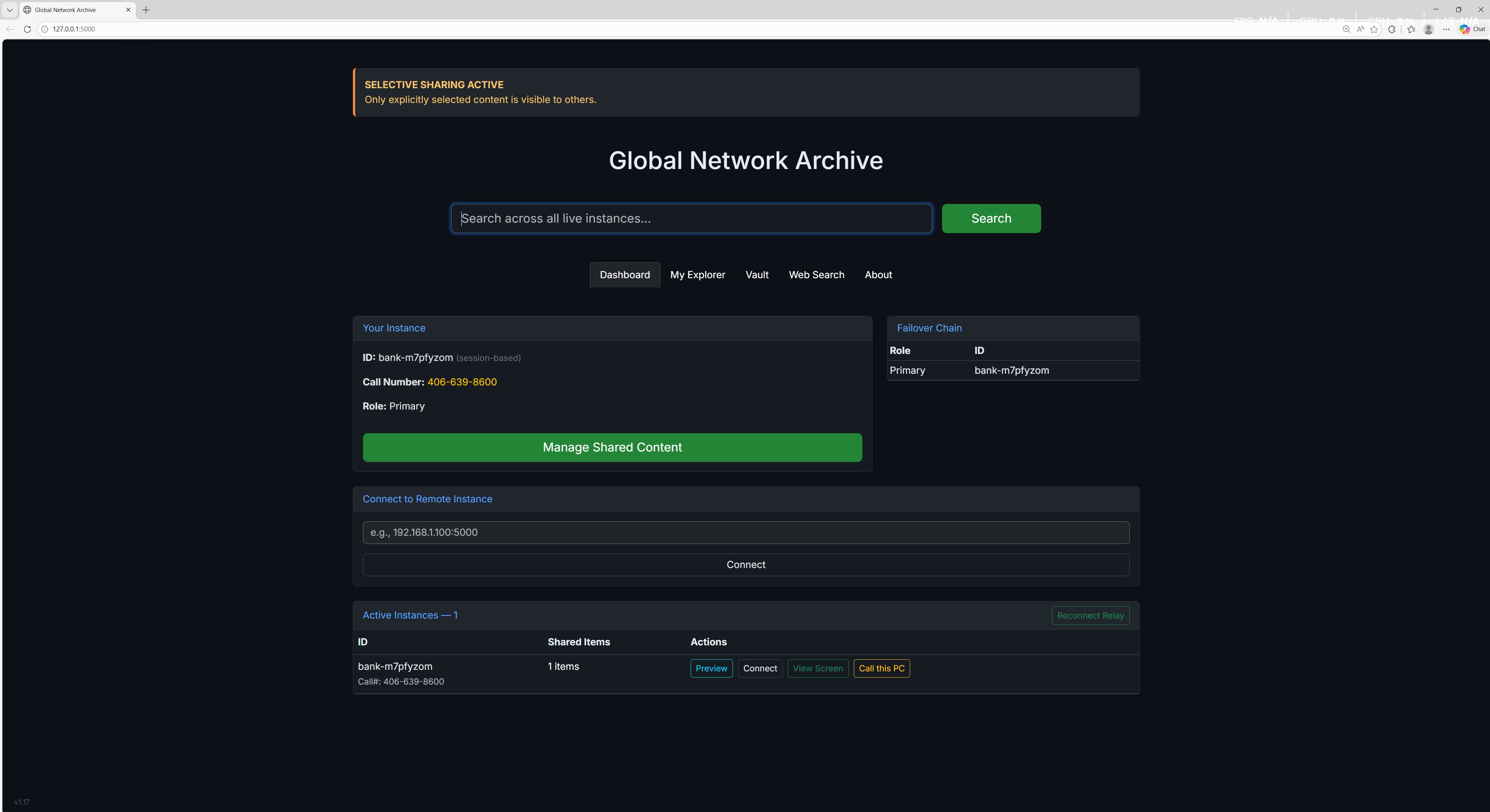
| Web UI | Flask + Bootstrap 5 (dark theme, live-updating dashboard) |
How Connections Work
Global Relay (Internet-Wide Discovery)
On startup, the system automatically connects to a Global Relay server. This is a lightweight signaling service that all peers connect outbound to — no port forwarding, no firewall configuration, no manual setup. Every running instance registers itself with a shared network code and receives a live list of all other peers worldwide on the same code. The relay only brokers introductions — it never sees your files, screen, or calls. Relay status is displayed in the terminal (Global Relay : LIVE or OFFLINE). If the relay disconnects, use the Reconnect Relay button on the dashboard to re-establish the link.
Connect to Remote Instance (LAN-Like Join)
When you enter an IP:port in the “Connect to Remote Instance” box and click Connect, you are initiating a direct LAN-like connection to that peer’s local network. This works as follows:
- Your instance contacts the remote peer at the given IP address and registers as a known peer on their network
- The connection operates as if you were on the same local network — you can browse their shared files, view their screen, call them, and use remote desktop, all with direct P2P data transfer
- While connected under this direct IP link, the Global Relay is disconnected to avoid duplicate routing and conflicting peer lists
- When you leave or the direct connection drops, the Global Relay automatically reconnects, resuming internet-wide discovery
- You can also manually reconnect the relay at any time using the Reconnect Relay button on the dashboard
This dual-layer approach gives you the best of both worlds: zero-config global discovery to find peers anywhere, then fast direct LAN-like connections for actual interaction. The relay finds peers; the direct link talks to them.
Core Features
1. File Sharing
- Zero default sharing — nothing is visible until you explicitly select files/folders in the Explorer and save your selection. Privacy is absolute by default.
- Granular selection — choose individual files or entire directory trees via the built-in Explorer. Toggle items on or off with a single click.
- Tag support — attach searchable tags to any shared item (comma-separated). Search uses AND logic across tags for precise filtering.
- Network-wide search — search across all live peers’ shared files simultaneously by filename or tags. Results link directly to download.
- Direct P2P download — files transfer directly between peers with no intermediary server. Click any result to download.
- Live updates — the dashboard auto-refreshes peer lists and shared counts every 5 seconds via Socket.IO.
2. Wireless Display (Screen Sharing)
- Sender — runs in the background (started automatically by the .bat launcher). Captures your screen in real-time using MSS and streams it as a WebRTC video track via the signaling server.
- Receiver — opens a dedicated viewer window showing the remote peer’s screen in real-time. Supports live system audio playback (system audio captured via Stereo Mix/loopback on the sender side).
- Audio controls — speaker mute/unmute toggle on the receiver to control playback of the remote system’s audio.
- Auto-reconnect — health checks run every 5 seconds. If the video stream drops, the receiver automatically reconnects without manual intervention.
- Remote Access — from the receiver, you can request control of the sender’s mouse and keyboard. The sender sees a popup dialog and must explicitly accept. Input is forwarded via pyautogui with rate-limited mouse events. Either side can revoke access at any time.
3. Video & Audio Calls
- Call numbers — each peer is assigned a unique call number in XXX-XXX-XXXX format on startup, displayed on the dashboard.
- Background listener — a headless call listener runs automatically in the background, always ready to receive incoming calls.
- Camera + Microphone — live video via OpenCV camera capture, live audio via sounddevice microphone capture, both streamed over WebRTC.
- Audio controls — Mic On/Off and Speaker On/Off toggle buttons during active calls. Mic mute stops sending audio; speaker mute stops playback of the remote peer’s audio.
- In-call chat — real-time text messaging during calls, relayed through the signaling server so messages arrive reliably even under NAT.
- Accept/Reject — incoming calls present a GUI dialog with Accept and Reject buttons. The caller sees a ringing state until the remote peer responds.
- NAT traversal — calls use Open Relay Project’s free TURN servers (ports 80, 443, TCP fallback) so calls work across firewalls and NAT without port forwarding.
4. Remote Desktop Access
- Permission-based — the receiver must explicitly request access, and the sender must explicitly accept via a popup dialog. No silent or automatic access is ever granted.
- Full input forwarding — mouse movement, left/right/middle clicks, scroll wheel, and full keyboard input are forwarded to the sender’s machine via pyautogui.
- Rate-limited — mouse movement events are throttled to prevent flooding the connection.
- Instantly revocable — either the sender or receiver can stop remote access at any time with a single click.
5. Encrypted Vault
- Opt-in only — the vault is never the default save location. You must explicitly choose to store files there.
- AES-256-GCM — files are encrypted at rest using AES-256-GCM with password-derived keys via scrypt (CPU+memory-hard KDF).
- Strong password policy — minimum 15 characters, at least 3 uppercase, 3 lowercase, 3 digits, and 1 special character.
- Secret file (optional 2FA) — an optional second factor where a chosen file’s identity is verified via a multi-hash fingerprint (MD5 + SHA1 + SHA256 + SHA3-512 + BLAKE2b + HMAC-SHA256). The file itself is never stored — only its fingerprint.
- In-place open — decrypt a vault file to a secure temp location, open it with the system’s default application, and automatically re-encrypt it when closed.
6. Global Discovery (Cross-Internet, Zero Config)
- No port forwarding required — every peer connects outbound to the relay. Works behind any NAT, firewall, or ISP.
- Automatic on startup — the system connects to the relay, registers, and begins discovering peers immediately with zero user input.
- Network code — a shared code (default:
publan-global-v1) groups peers together. All peers on the same code see each other. - 5-second polling — peer lists refresh every 5 seconds. New peers appear on the dashboard within seconds of joining.
- Relay disconnect on direct connect — when you connect directly to a remote instance by IP, the global relay disconnects to avoid conflicts. It reconnects automatically when the direct connection ends.
- Manual reconnect — use the Reconnect Relay button on the dashboard to re-establish the relay link at any time.
- TURN servers — WebRTC media (screen, calls) uses Open Relay Project’s free public TURN servers for NAT traversal (ports 80, 443, TCP).
Peer Discovery
Three discovery methods run simultaneously. All discovered peers appear in the same Active Instances list on the dashboard:
- mDNS (Zeroconf) — automatic, zero-config discovery on the local network. Peers on the same LAN/Wi-Fi appear instantly.
- Manual IP connect — enter an IP:port in the dashboard to initiate a direct LAN-like connection to a specific peer. This creates a direct link under that peer’s IP, operating as if both machines are on the same network. The global relay pauses during this direct connection and resumes after.
- Global relay — automated internet-wide discovery via a shared signaling server. No port forwarding needed. Peers register with a network code and are listed globally within 5 seconds.
Failover Chain
Peers are ranked by join time. The earliest joiner is Primary, the next 10 are Backup 1–10, the rest are Standard. If the Primary goes offline, backups automatically take over in order, ensuring network continuity.
Setup
Requirements
- Python 3.10+ with packages: flask, aiortc, pillow, numpy, pyautogui, zeroconf, mss, requests, python-socketio, sounddevice, opencv-python, cryptography, pyav, pywin32
- Node.js (for the signaling server — handles WebRTC signaling, call routing, chat relay, and global discovery)
- All Python packages are installed automatically by the
Start PubLAN.batlauncher
Quick Start
- Install Python and Node.js
- Double-click
Start PubLAN.bat— it installs all dependencies, starts the signaling server, launches the sender, and opens the dashboard - Dashboard opens at
http://127.0.0.1:5000 - Global discovery connects automatically — peers on the same network code appear within seconds
For Internet Access (without Global Relay)
- Port forward TCP 5000 on your router to this machine
- Share your public IP:5000 with others — they enter it in “Connect to Remote Instance”
For Internet Access (with Global Relay — No Port Forwarding)
- Deploy
server.jsto a public host (Render, Railway, VPS) — arender.yamlis included for one-click Render deployment - Update
relay_urlinglobal_config.jsonto the public URL - All peers with the same
network_codeauto-discover each other globally
Enable System Audio (Screen Viewer)
On Windows: Sound Settings → Recording Devices → enable “Stereo Mix” (right-click → Show Disabled Devices if hidden). This allows the sender to capture and stream system audio to the receiver.
Security
- Zero default exposure — nothing is shared until explicitly selected and saved
- Encrypted communications — X25519 ECDH key exchange + AES-256-GCM symmetric encryption with forward secrecy
- Post-quantum identity — SPHINCS+-SHA256-256f hash-based digital signatures for long-term peer verification
- Integrity verification — SHA3-256 manifest checks all source files on startup to detect tampering
- No telemetry — zero analytics, zero tracking, zero phone-home. The relay only sees peer IDs and IP addresses for discovery, never file contents or stream data.
- Encryption registry — tracks trusted encryption methods with version numbers and trust status for auditability
- Permission-gated access — remote desktop requires explicit sender approval; file sharing requires explicit selection; calls require explicit acceptance
Download
Leave a comment
Log in with itch.io to leave a comment.